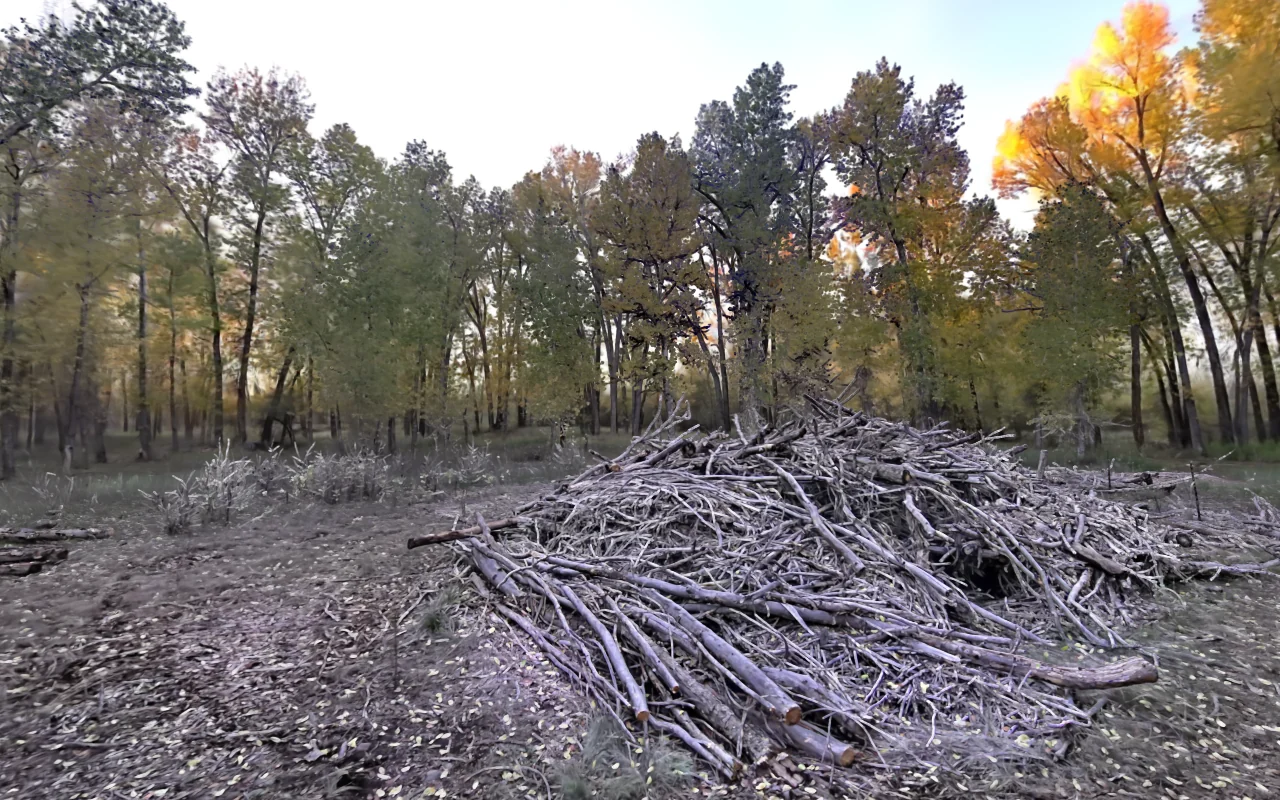
Click where you want to go, or use the arrow keys to walk and turn.
Getting around
- Walk to a point
- Click a floor or doorway
- Walk forward or back
- Up and down arrow keys, or W and S
- Turn left or right
- Left and right arrow keys
- Step sideways
- A D
More controls
- Change view
- Open Walk, then choose Orbit
- Zoom in Orbit mode
- Mouse wheel or trackpad
- Return to the entrance
- Entrance, or press R
- Fill the screen
- Fullscreen; press Esc to leave
- Open this guide again
- Help, or press ?
Tools
- Measure
- Tools, then Measure, or press M; click two points for a distance, or choose Area or Volume and click each corner. Drag a point to fine-tune
- Leave a note
- Tools, then Notes, or press N; pin a note or sketch on a surface. Notes stay private in this browser
- Place by keyboard
- Press M or N on the scene, aim the center mark with the arrow keys, then press Enter
- Frame a shot
- Tools, then Viewfinder, or press L; choose a camera, lens and frame lines
- Save this view
- Press B; open Saved views to return, copy a link or print a PDF
- Take a still
- Press P for a high-resolution image
- Move a tool window
- Drag its title bar, or press the grip at its left for the next corner; click the title bar to minimize or restore it
Scene quality
Open Settings to change how much of the capture is drawn. The tour starts at High quality on every device.
- High quality
- The default: the full scene, tuned to stay smooth
If a target is not part of the walkable floor, choose a nearby doorway or open floor area.
Use the current movement control, then drag anywhere else on the scene to look around.
Getting around
- Move
- Use the left joystick
- Look around
- Drag anywhere outside the joystick
- Tap instead
- Open Joystick, then Tap to move
More controls
- Orbit the model
- Open the movement menu
- Zoom in Orbit mode
- Pinch
- Return to the entrance
- Tap Entrance
- Fill the screen
- Open Settings, then Fullscreen
- Open this guide again
- Tap Help
Tools
- Measure
- Tools, then Measure; tap two points for a distance, or choose Area or Volume and tap each corner. Drag a point under the magnifier to fine-tune
- Leave a note
- Tools, then Notes; pin a note or sketch with one finger. Notes stay private on this device
- Frame a shot
- Tools, then Viewfinder; choose a camera, lens and frame lines
- Keep a view
- Tools, then Saved views; share a link or print a PDF
- Move a tool window
- Drag its title bar, or tap the grip at its left for the next spot; tap the title bar to open or minimize it
Scene quality
Tap Settings to change how much of the capture is drawn. The tour starts at High quality on phones and tablets too.
- High quality
- The same capture source, with drawing detail adjusted for your device
Tours use the same capture source across devices. The amount drawn at once can vary with device performance; Full detail is a larger download where offered.